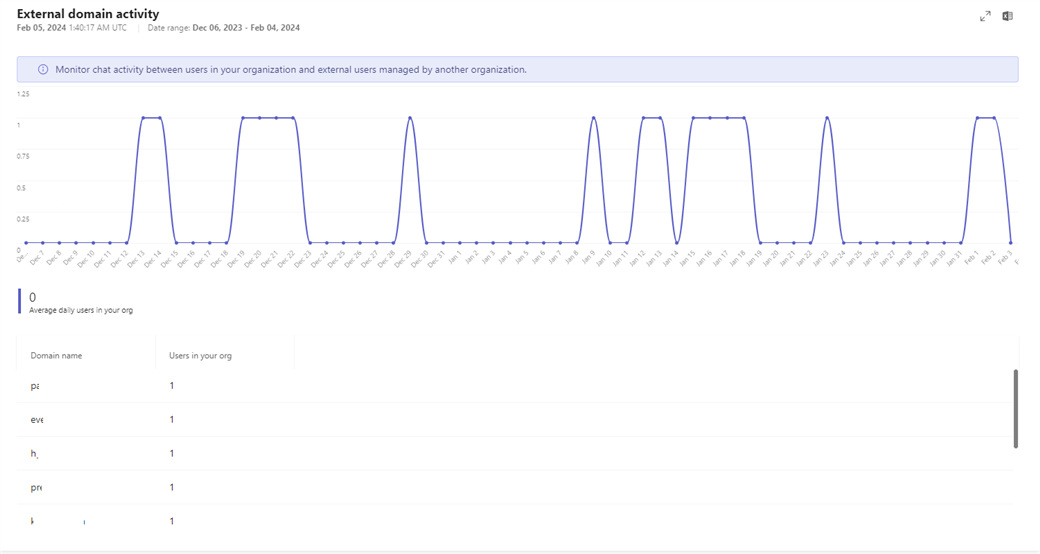


Le rapport d'activité des domaines externes est un nouveau rapport disponible dans le centre d'administration Microsoft Teams.
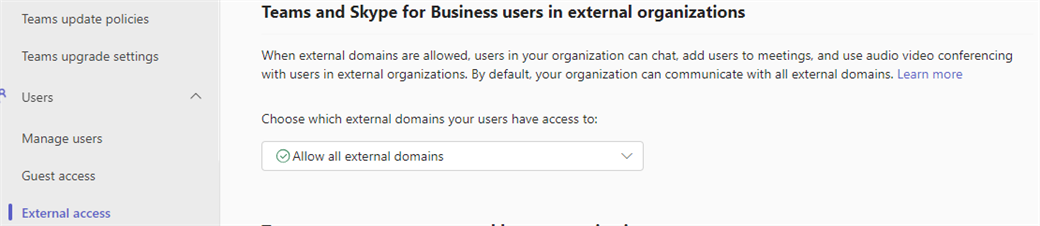
Lorsque les domaines externes sont autorisés, les utilisateurs de votre organisation peuvent discuter, ajouter des utilisateurs aux réunions et utiliser la visioconférence audio avec des utilisateurs d'organisations externes. Par défaut, votre organisation peut communiquer avec tous les domaines externes.
Cette configuration est activé par défaut et disponible dans l'onglet Users puis External Access.
Une demande récurrente des organisations est de pouvoir disposer facilement d'un moyen de visualiser les domaines avec lesquels leurs utilisateurs interagissent.
Il était possible d'obtenir ces informations en utilisateur Graph API mais l'opération reste laborieuse.
Le nouveau rapport d'activité des domaines externes permet désormais aux administrateurs Teams de visualiser les domaines avec lesquels leurs utilisateurs communiquent.
Feuille de route: https://www.microsoft.com/en-ie/microsoft-365/roadmap?filters=&searchterms=370565

Le rapport est disponible globalement.
Ce rapport est disponible aussi bien pour ceux qui ont la fédération ouverte que pour ceux qui utilisent des listes d'autorisations explicites.
Il s'agit d'un nouveau rapport dans le Centre d'administration Teams qui fournira des analyses de base pour l'accès externe, telles que le nombre d'utilisateurs internes et externes, la répartition de l'utilisation de l'accès externe par fonctionnalité, et la liste des domaines gérés avec lesquels une communication a eu lieu via l'accès externe..
Ce rapport donnera aux administrateurs une meilleure visibilité et un meilleur contrôle sur l'accès externe dans leur locataire, avec une carte des domaines externes actifs collaborant avec l'espace cloud de l'entreprise.
Le rapport est disponible en naviguant dans l'onglet Analytics & Reports puis Usage reports.
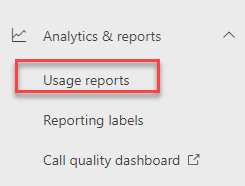
Sélectionner le nouveau rapport External domain activity.
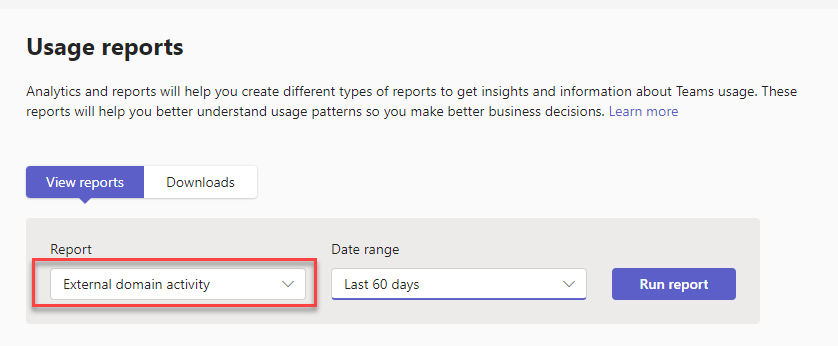
Vous pourrez voir les éléments suivants dans les rapports d’utilisation :
- Nombre total d’utilisateurs internes et externes qui tirent parti de l’accès externe.
- Répartition de l’utilisation de l’accès externe par fonctionnalité (TFW-TFW, TFW-TFL, Skype)
- Liste des domaines gérés avec lesquels vous avez communiqué à l’aide d’un accès externe.
- Nombre total d’utilisateurs internes et externes communiquant avec chaque domaine.
Le rapport prend en charge les plages de temps existantes dans le Centre d’administration Teams, telles que les 7 derniers jours, les 28 derniers jours et les plages personnalisées (jusqu’à 6 mois). Les administrateurs pourront également télécharger le rapport à des fins d’analyse ou de création de rapports.